Task lists from the apps you already use
Task lists from the apps you already use
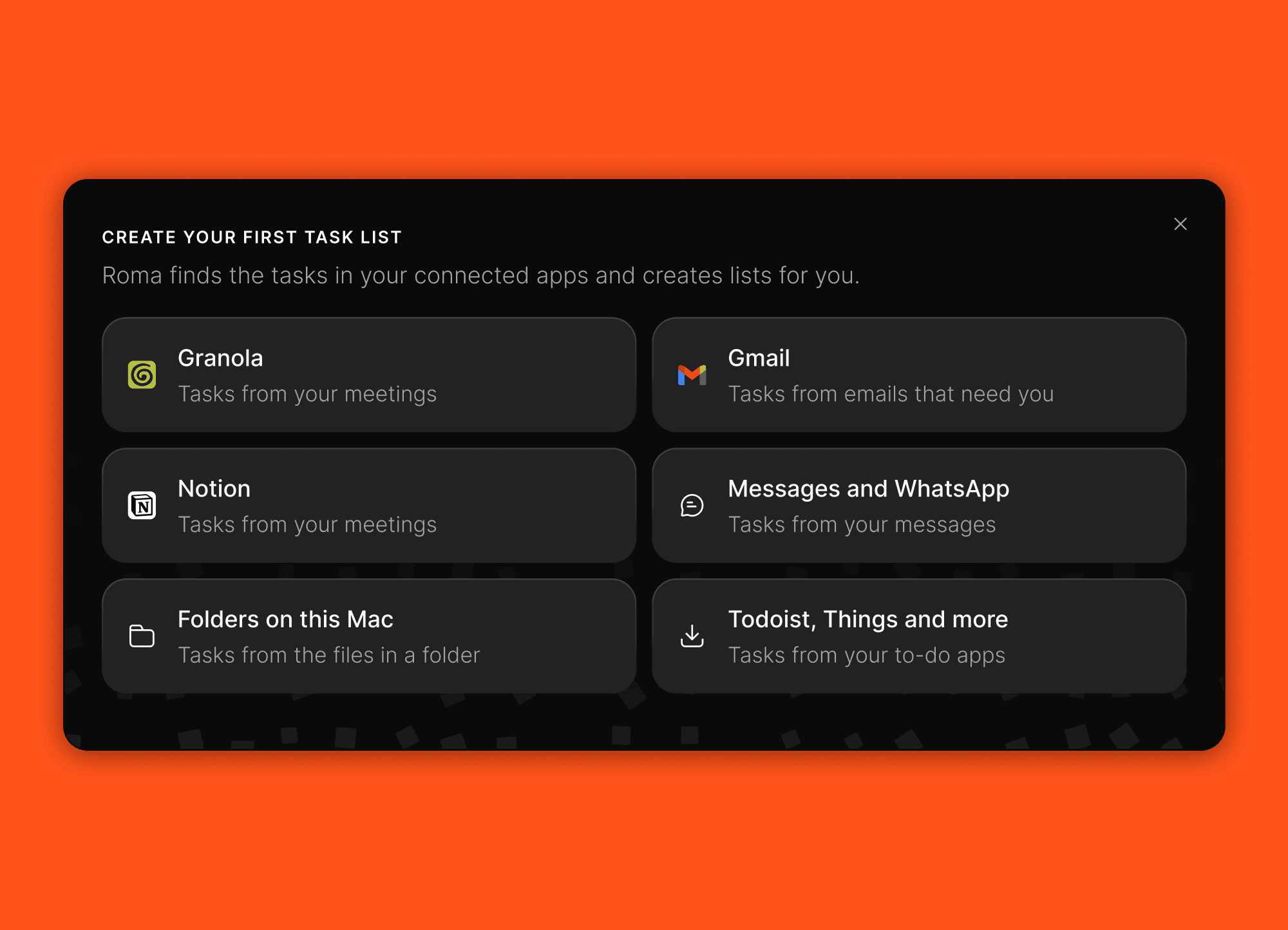
On a new account, the welcome card offers Create your first task list, with a row for each app you already use. Pick one and sign in, and Roma creates the list and starts filling it while you stay on your Tasks page. Tasks from meetings reads Granola or Notion. Tasks from email reads Gmail and arrives as a board grouped by what each email needs from you. On the Mac, Tasks from messages reads Messages and WhatsApp and files the replies you owe and the follow-ups you promised, each with a draft reply. Folders on this Mac watches a folder: drop an invoice PDF in, and a moment later there is a task with that PDF on it.
Settings → Import now holds every way tasks come into Roma: the ongoing sources on top, and one-time imports from Todoist, Things and other apps at the foot. On the iPhone, Apple Reminders is one of the rows. Each list is filled by an automation you can open, pause or point at another list, and if you delete the list, new tasks land on Tasks. Already using Roma? Look for Import your tasks at the foot of the sidebar.
Statuses you shape, and an ID on every item
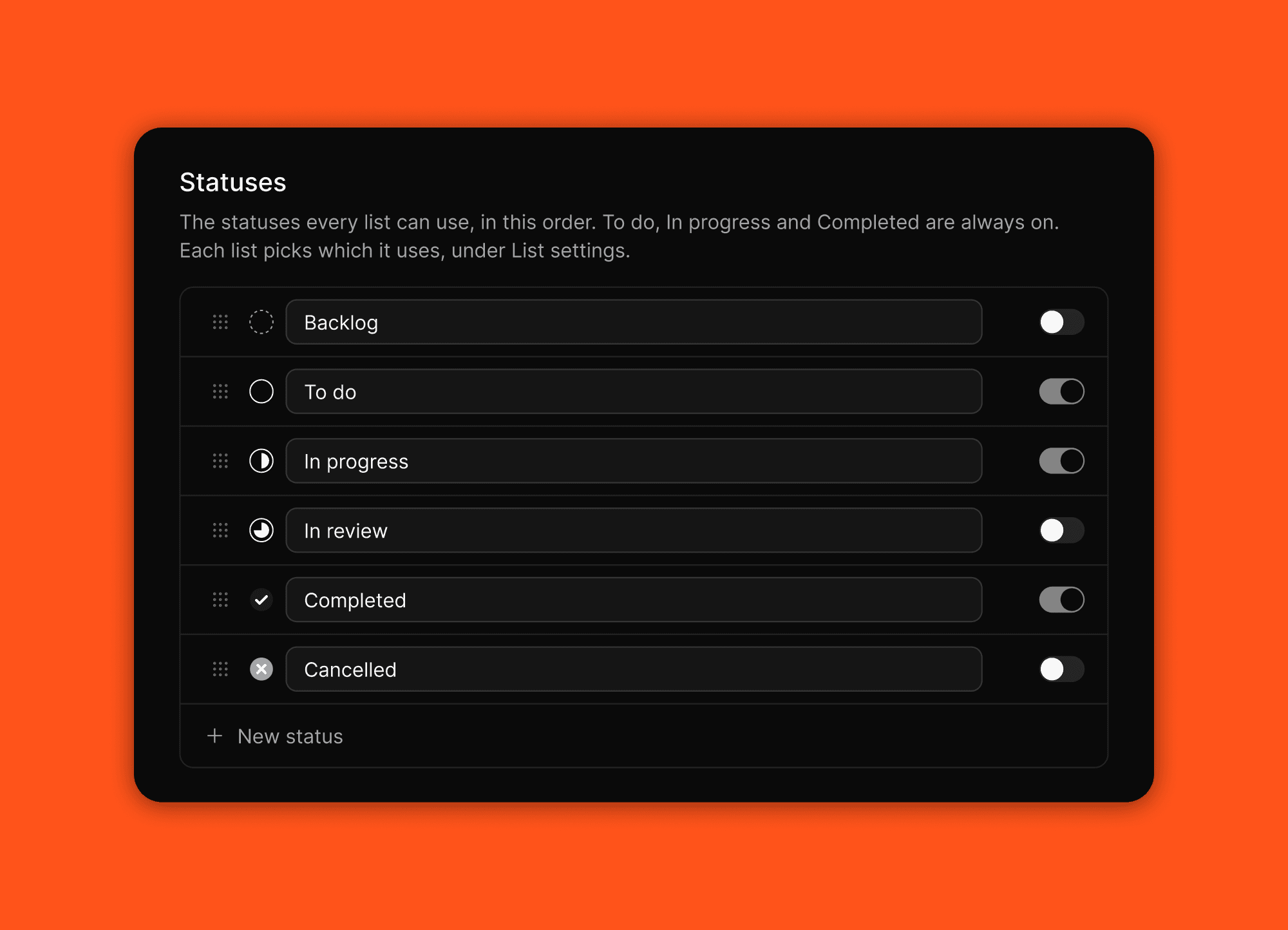
Settings → General → Statuses holds your workspace's statuses: six built in (Backlog, To do, In progress, In review, Completed and Cancelled) plus any you add, each with a glyph that also decides whether it counts as done. Each list switches on the statuses it uses, and switching one off asks where its tasks should go. Click a status on any status control to move it to the next one, or click the word to pick. A new item on a list with a status starts as To do.
Every item also has a fixed ID now, like BUG-42 on a bug list: a prefix and a running number per list. It stays hidden until you show it in List settings, where it leads the list ahead of the title. Copy ID is on every item, and ⌘K finds an item by its ID.
A calmer look across Roma
Roma has one design language now. Every pill has the same shape, a status or a choice reads as the word alone, option colors stay neutral until you pick one, and table rows are taller with the title in line with its header. On web and Mac, the sidebar is new: bigger rows with a glyph for each list, a selection that slides to the row you pick, and sections that fold. Settings is redesigned too, with your connections as tiles and every section in its own card. The top of every list is its search field: start typing and the list filters.
Lists also show exactly what you choose. List settings has an eye on every property, the order you set is the order everywhere with the title included, a compact card shows the status, the title and the due date, and a full card's title wraps to three lines.
Connect your AI to Roma
Settings → Agents is open to every account, with a setup card for each agent you use, and Connect an MCP server is available to everyone under Settings → Connections. A connected AI can now read, create and update your experts and work under them. When an outside agent posts on a shared item, the post lands in the shared conversation for everyone on it.
Due tasks on your iPhone Lock Screen
A task that is due now shows as a Live Activity on the Lock Screen and in the Dynamic Island. In Settings, under Reminders, choose whether a reminder shows as that card, a notification or both: the card is the default and clears after 15 minutes. The Tasks widget now shows what your Tasks page shows, with the same Show, Completed, Filter and Sort choices. A saved Due date filter turns any list into a Today or This week page, and a new task there takes the filter's day.
All updates
Create your first task list on the welcome card: a row per app you use, and a click signs the app in, creates the list and starts filling it while you stay on Tasks.
Tasks from meetings reads Granola or Notion, starting from your last seven days or your five newest meetings, whichever is more.
Tasks from email reads Gmail into a board grouped by what each email needs.
Tasks from messages: Roma reads Messages and WhatsApp on your Mac and files what needs you onto the list you choose, each task with a draft reply.
Folders on this Mac: every file dropped into a watched folder becomes a task with the file attached.
Settings → Import is every way tasks come in: ongoing sources on top, one-time imports at the foot, Messages and Folders on this Mac included, and Things wears its own icon.
On the iPhone, the welcome card's list rows lead the Lists tab, Apple Reminders among them, and Import sits under Settings → Connections.
Import your tasks: a card at the foot of the sidebar points to Import until you put it away.
The automation behind a source list holds where its tasks go; delete the list and new tasks land on Tasks, with nothing paused.
A source list's reads no longer post a message in your Operator chat on every run.
Signing out, switching accounts or deleting an account leaves no connection behind on the Mac or the iPhone, and the iPhone's Connections page shows your Mac as Messages on your Mac.
On the iPhone, the welcome card folds away while you type a new task and comes back when it lands, and its dark band shows again.
Back to app works again after the welcome card opens Import, and the empty Lists page talks about tasks.
Statuses you shape: six built in, any you add with their own glyph, each list's own set, and switching one off asks where its tasks go.
Click a status to move it to the next one, on every status control; click the word to pick, and a switch in Settings turns the walk off.
A new item on a list with a status starts as To do, and To do, In progress and Completed always stay on.
A fixed ID on every item: a prefix and a running number per list, hidden until you show it, first in the list when shown, with Copy ID and lookup from ⌘K.
List settings: one name for the list's setup, an eye on each property to show or hide it, your own view of a list shared with you, and on the iPhone a row size per list.
One property order on every surface, the title included; the title hides like any other property, and the pills in an item drag to reorder.
Cards: a compact card shows the status, the title and the due date, a full card's title wraps to three lines, and values always show as pills.
Show task summaries: a switch in Settings for the summary line under full-size task rows.
Every task gets its summary, including tasks from email, automations, Import and connected agents.
A Person column holds one person by default, so picking someone reassigns the item; turn on Allow several people per column.
Number properties follow your region's separators, with Follow device or your own choice in Settings.
The list's header is its search field: type to filter the list.
One design language: one pill shape, statuses and choices as the word alone, neutral option colours until you pick one, taller table rows with the title in line with its header.
The new sidebar: bigger rows with a glyph for each list, a selection that slides to the row you pick, sections that fold, and your account at the foot.
Settings, redesigned: connections as tiles that open on what they last read, every section in its own card, glyphs in the rail, Appearance picked from a picture of each look, and the Mac's app icons drawn as the Dock draws them.
Settings polish: a new page order in the rail, Browser sign-ins last on Connections, the Statuses switches lined up, and the New expert button back on Experts.
The iPhone's Settings home is six cards in the same order as web's, with General holding the app's pages.
Board columns can always be reordered, whatever the status sort.
A new item on a sorted list lands at the top and stays there while you set its properties.
Every table cell sits centred on its row.
Show tasks from all lists is each device's own choice, and the Tasks pill always stands first after All lists.
The Show menu says what it shows: Completed tasks (Always, Last day or Never) and, on Tasks, which lists.
New items wear a blue dot on their list's row and on the item until you open them, with Mark as read on both.
An archived item opens read-only from its link with Unarchive in its menu, and Settings → General → Tasks → Archived lists everything archived.
A task you just made no longer appears on a filtered page it does not belong to.
⌘N opens a New task dialog from any view, over whatever is on screen; the inline New row moves to ⌘⇧N.
The New task dialog takes dropped and pasted files and attaches them to the task.
Create a new option right from the iPhone's chooser, as on web and Mac.
Pictures in a body sit side by side in a gallery of up to three across; drag a picture beside another to build one. On the iPhone, it comes with the next update.
Lists move between sections on the iPhone's Lists tab, by drag or with Move to.
Tasks, Lists and Operator are the iPhone's default tabs; More is a tab you can add.
A saved Due date filter makes any list a Today or This week page on the iPhone, shown as a pill beside the title, and a new task there takes the filter's day.
On the iPhone, a person cell shows the people's names, and a tab's blue dot opens onto the row that wears it.
Members of a shared list edit its instructions, properties and settings like the owner, on web and the Mac and through the Operator and connected agents; the iPhone follows with the next update.
⌘K and @ find the items and lists shared with you.
Mention yourself in a shared item: the @ picker offers everyone on it, you included.
In a shared conversation, your Operator's reply stands under the message that asked for it, and only the person who asked can answer its question.
Typing a new item on a shared list keeps your cursor where it is.
Updates groups activity on one item into one row, like "Mara K. and Roma wrote 7 messages in the chat".
Click an update's dot to mark that one update read.
Updates on the iPhone catch up on everything that arrived while the app was in the background.
Settings → Agents for every account, with a setup card for each agent you use.
Connect an MCP server under Settings → Connections, for every account.
A connected AI can read, create and update your experts and work under them, read an item's version history and one automation in full.
A due date set by a connected AI is a day unless it names a time, and reminders are set on their own.
An outside agent's post on a shared item lands in the shared conversation, wearing the agent's own mark.
The Operator looks at the pictures in an item's body.
Name several experts in one message and get one reply from all of them.
What you say to the Operator is no longer pasted into the task it creates.
A list's name inside what you ask for is no longer mistaken for the list to put it on.
A web search answer ends with its sources and never cuts the reply's words.
A dropped connection during a browser task no longer reads as an error, and the chat catches up.
Messages typed with Shift+Enter over bullet points no longer show stray backslashes.
Scheduled automations take a start date.
An on-demand automation reads On demand and is never paused.
On the iPhone, an automation's run shows the step it stopped at.
⌘-click the Operator in the sidebar to open it.
Memory's Your instructions is a plain text field.
A task due now shows as a Live Activity on the Lock Screen and in the Dynamic Island.
Reminders show as a Lock Screen card, a notification or both, your choice in Settings; the card is the default and clears after 15 minutes.
The Tasks widget shows what your Tasks page shows, with its Show, Completed, Filter and Sort choices.
An Action Button recording you stopped is never lost by opening the app, and finishes on the next open.
iPhone Duo: a wider sidebar, the Operator as a centred column, the due date picker as a popover, the tab bar beside the toolbar's buttons, the current row following your tap, and attachment tiles no longer cut off.
Tab corners match the sidebar's rows, the update pill sits in the sidebar, and GitHub's and X's marks read in dark mode.
The Mac app no longer offers a texted verification code in every field.
Safari on the iPhone shows a banner on roma.app to open or get the app.