Hand any task to any agent
Roma 2.0 is out, and you can now hand off any work to any agent. ChatGPT pulls the numbers, Claude writes the recap, Claude Code fixes the bug on your Mac while you’re at lunch. Give each agent its own task, or put several on one, each doing the part it’s best at. Also new: several views of one list, search that finds it first, and an Updates that stays calm on a busy day.
Hand any task to any agent
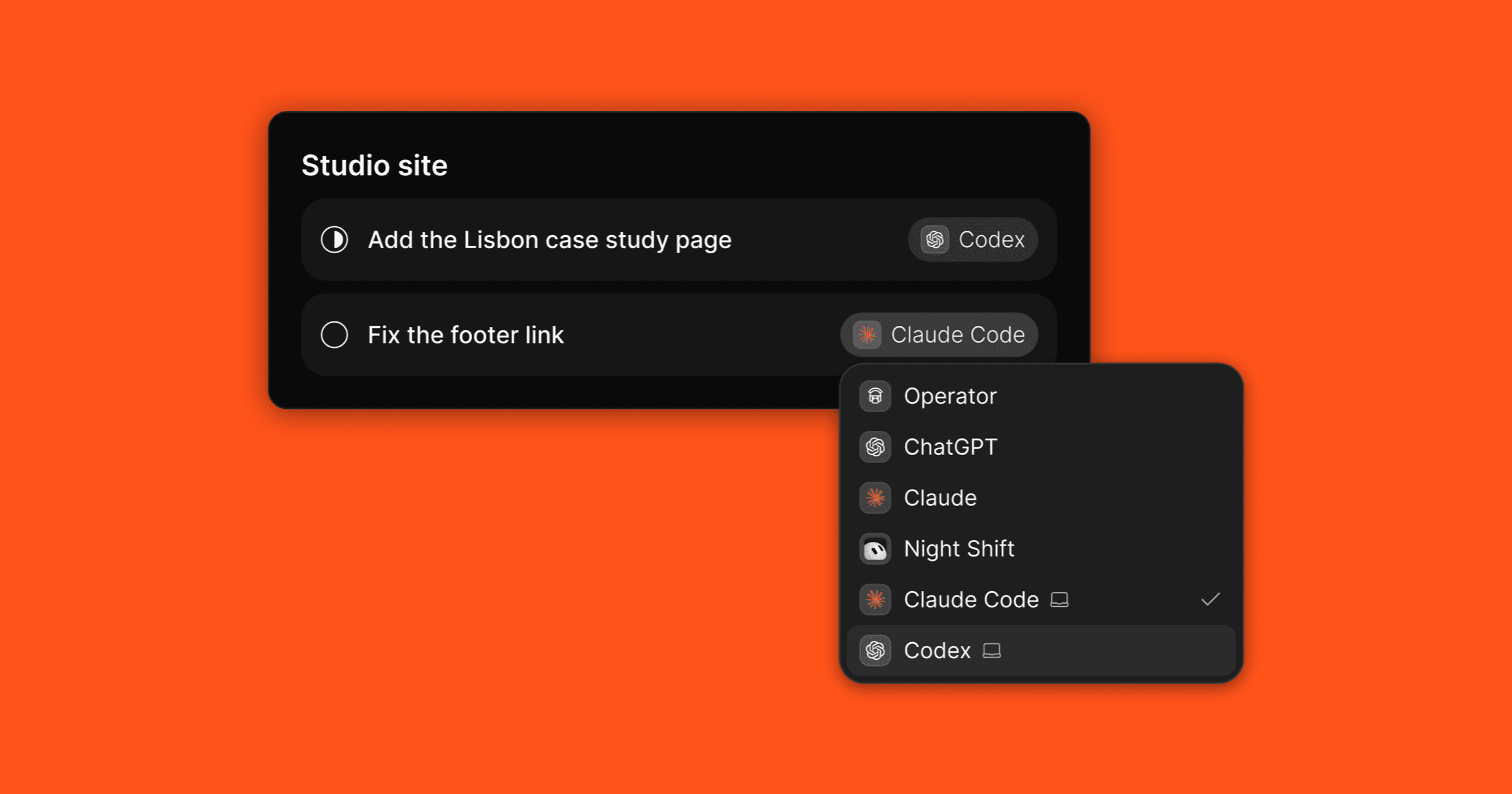
Every task has a Delegate field now, so a task goes to an agent the way it would go to a colleague. Say Friday’s client recap is open in Roma, and ChatGPT has spent the morning on it, pulling the numbers into the task. Now the recap needs a writer. Switch the Delegate to Claude. Claude picks up right where ChatGPT left off and drafts the recap there. When it’s ready, Claude lets you know right in the task’s chat. You answer in one line.
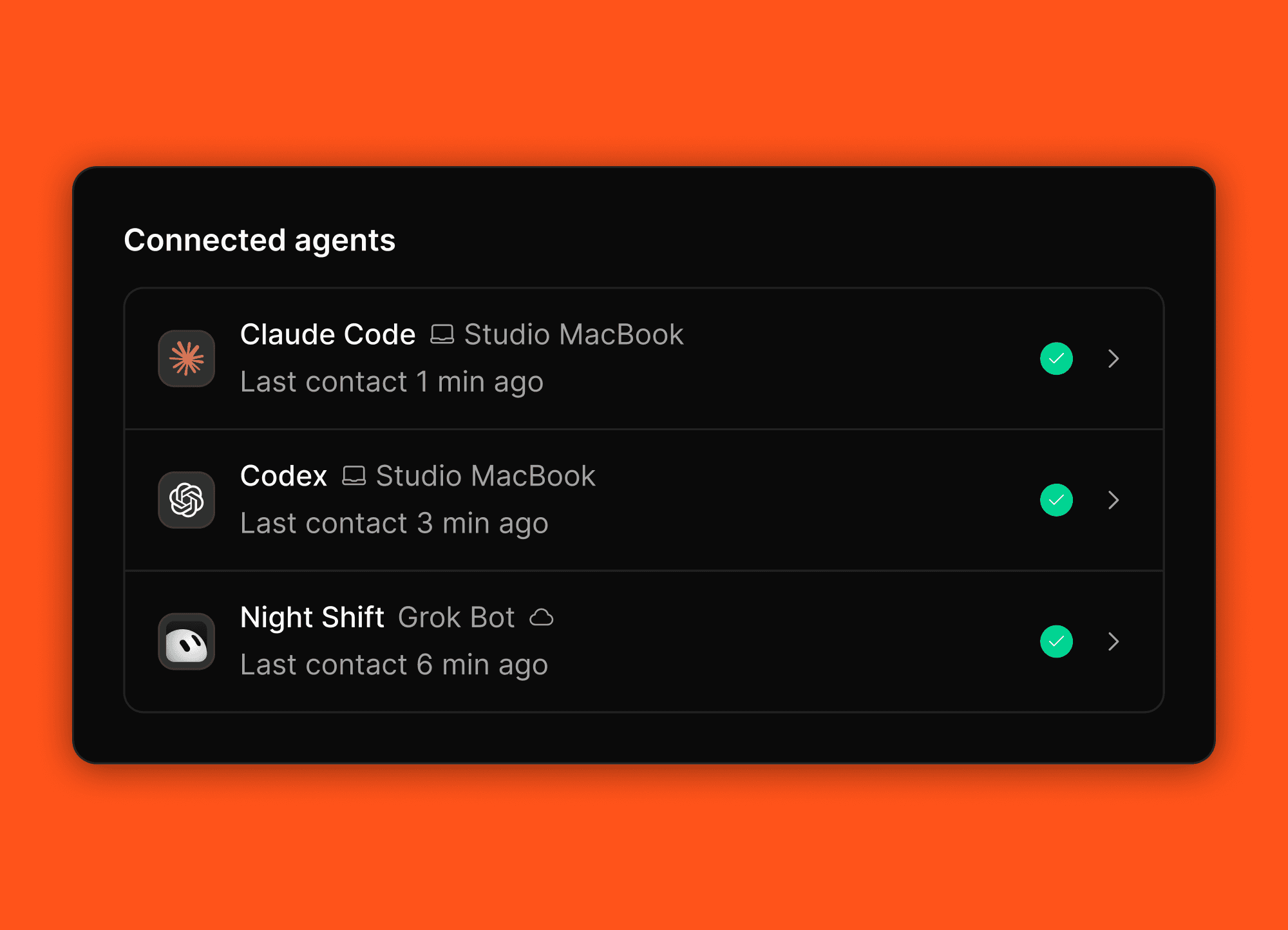
Connect your agents once under Settings → Agents: ChatGPT, Claude, Muse, Instinct and Grok Bot. From then on, any of them can take a task, and they can pass it to each other too. You can be in ChatGPT and send a task to Muse without leaving that chat.
Claude Code and Codex work on your Mac
Claude Code and Codex can take tasks too, and they do the work on your Mac in the folder you chose for them. So if you’re at lunch and your Grok Bot finds a bug report in the inbox, it can make a task and hand it to Claude Code. Claude Code starts on the fix on your Mac back at the office, in the site’s folder. Your phone buzzes with one question from Claude Code in the task’s chat. You answer it, and by the time you’re back, the fix is done.
Behind it is Roma Bridge, a small app on your Mac that starts the agent when a task comes in. Install and sign in to Claude Code or Codex, press Approve once, and keep the Mac awake. Roma doesn’t need to be open. A small laptop beside their names in the Delegate picker shows which work happens on your machine.
A Grok Bot for every job
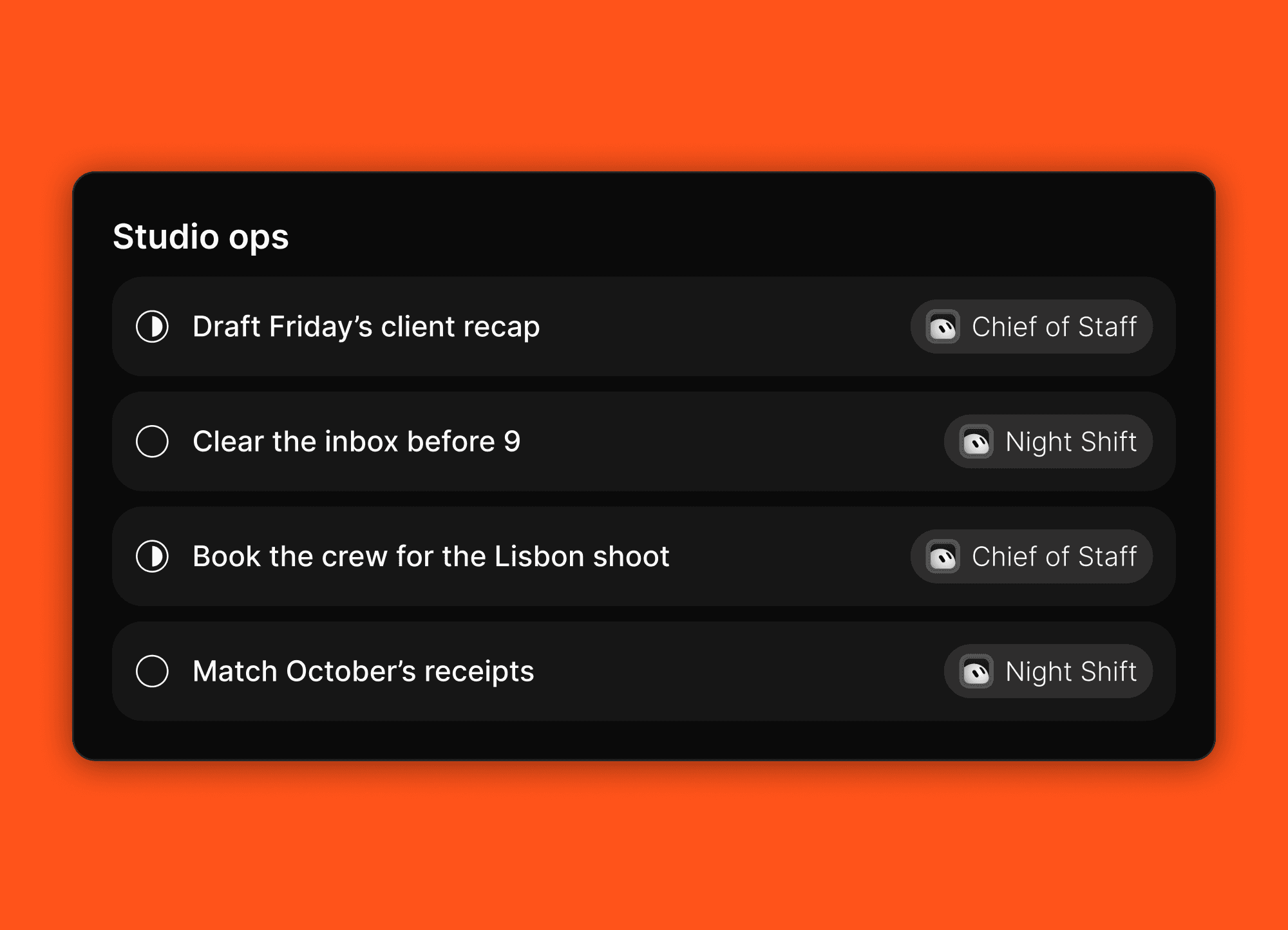
You can now connect more than one Grok Bot, and each one shows up in Roma under the name you gave it. Give each one a job. Chief of Staff drafts Friday’s client recap and books the crew for the Lisbon shoot. Night Shift clears the inbox before 9 and matches October’s receipts. Both show by name in the Delegate picker, so every task goes to the Bot whose job it is. To add one, open Settings → Agents and press Another Grok Bot.
Several views of one list
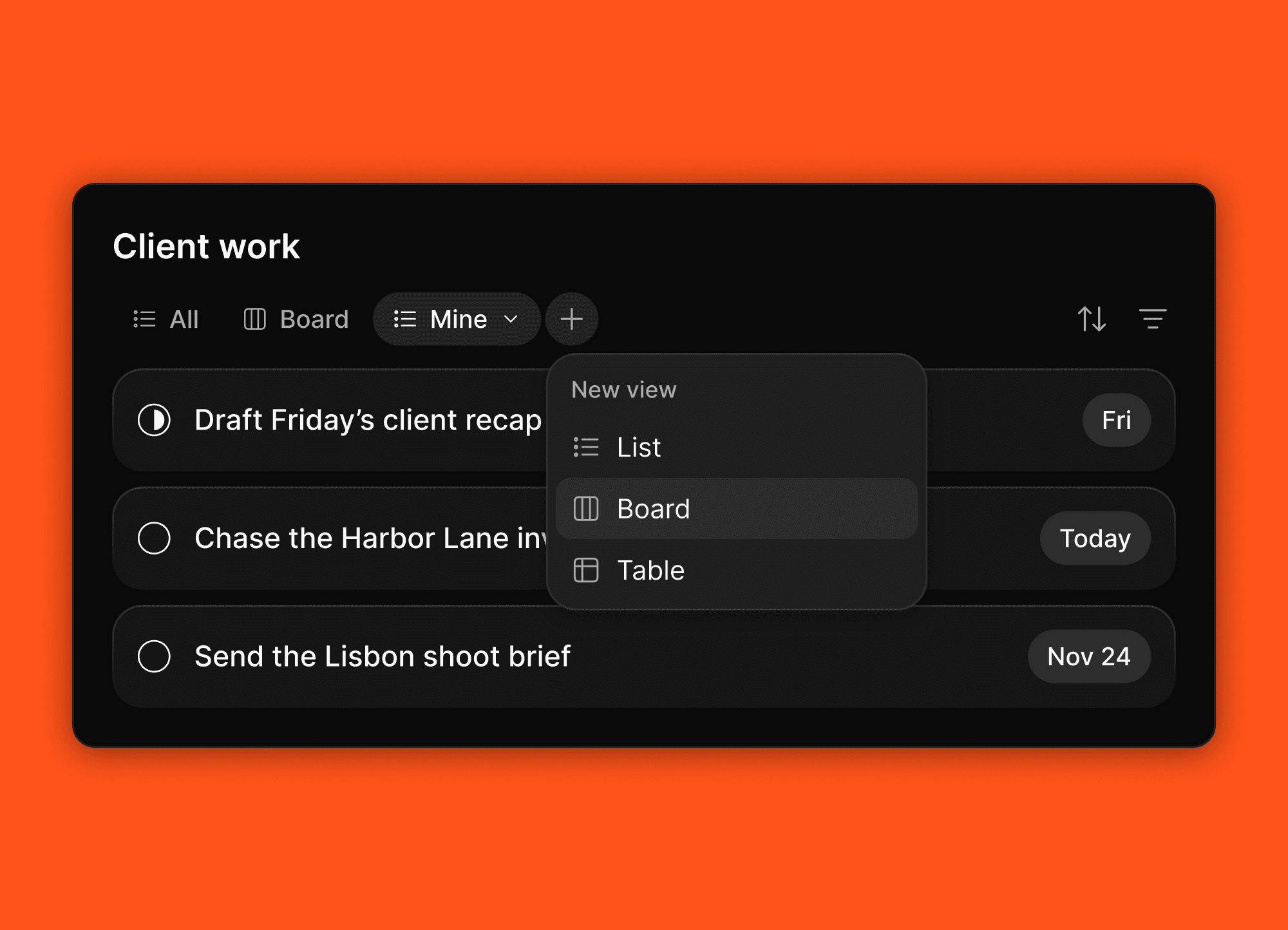
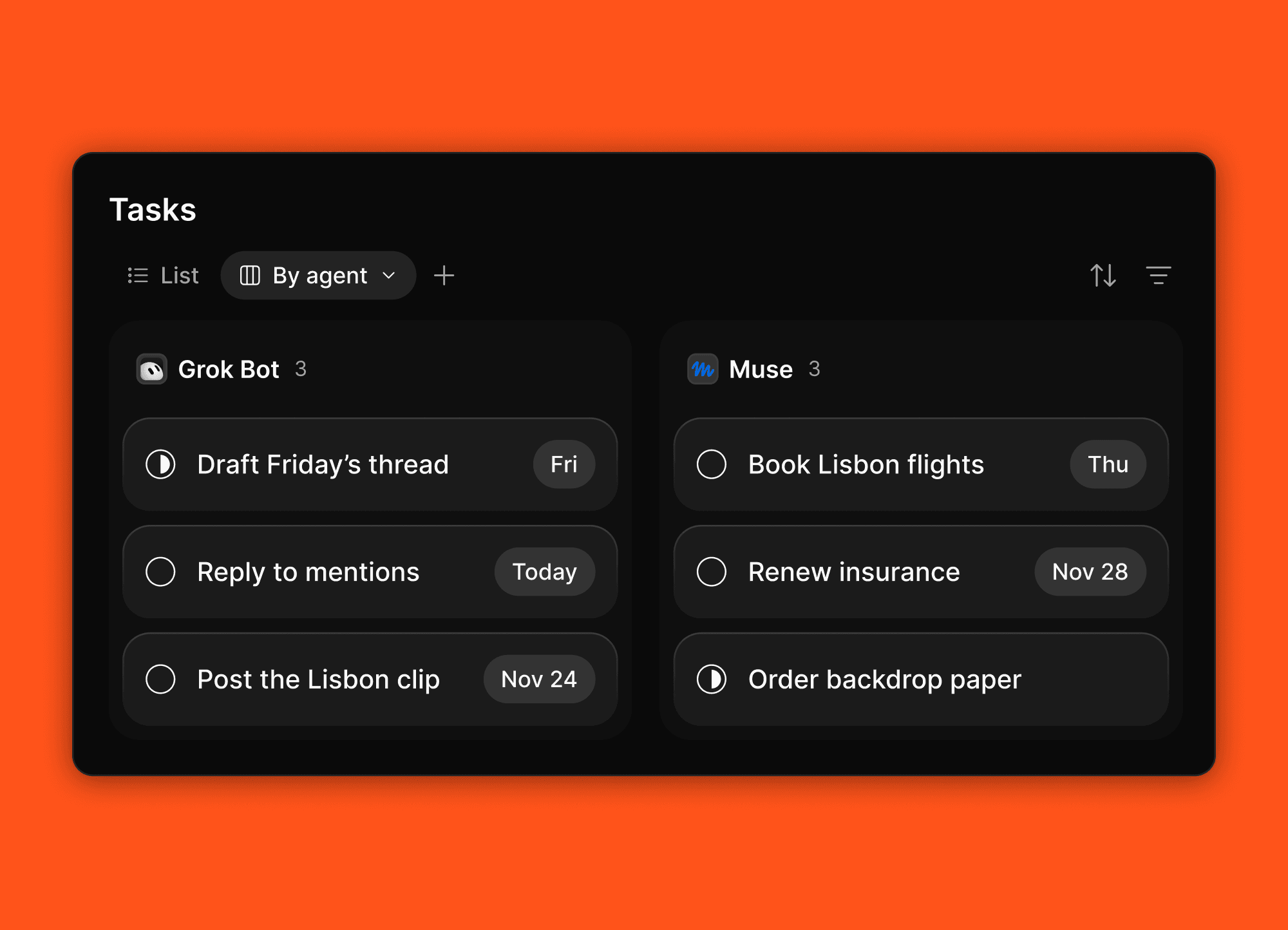
A list can now keep as many views as you need, each with its own layout, sort, filter and properties. On a Client work list, keep All as a plain list, a Board grouped by Status for the weekly review, and Mine for only your tasks. Switch with one press on the pills at the top, or press the plus to add a List, Board or Table view. Every view shows the same items, so deleting a view never deletes a task. On a shared list everyone sees the same views, and your changes stay yours until you press Save for everyone.
The Tasks page has views too. Group a board by agent to see who’s working on what, or filter by list to keep Home out of your workday. Saved views, boards and tables come to iPhone with the next update.
Search puts the best match first
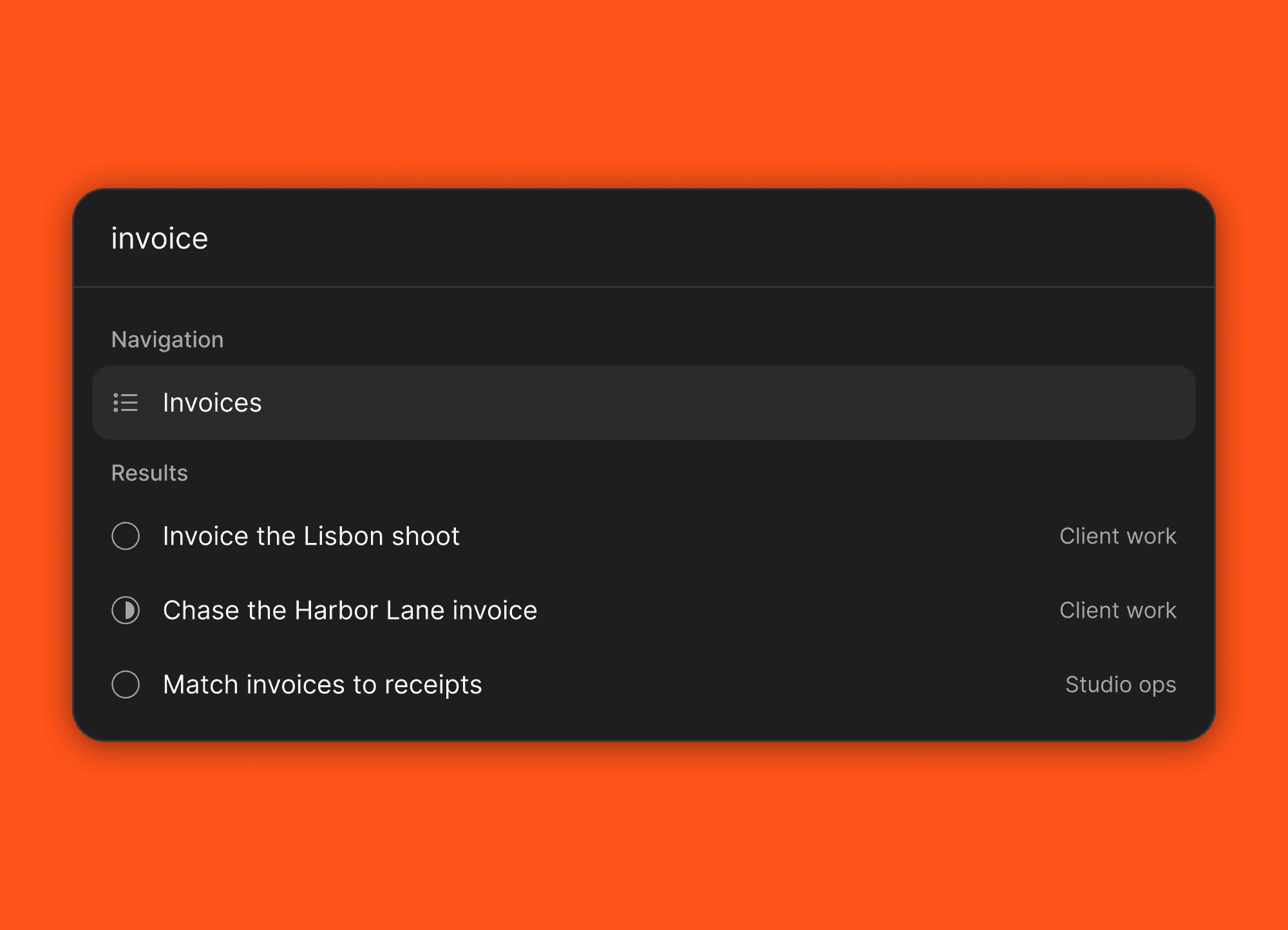
⌘K now sorts results into clean sections: actions first, then your pages and lists, then your tasks and items, with the best match on top of each. Type “invoice” and the Invoices list comes up under your lists, while the task that starts with “invoice” beats the ones that only mention it. Every task shows its status and its list, so two tasks called Follow up never get mixed up.
Type TASK-42, 42, or even tsak 42, and that task comes up first, even if you finished it months ago. On iPhone, search ranks the same way and keeps your search when you go back from a result.
One row in Updates per task, however busy the day
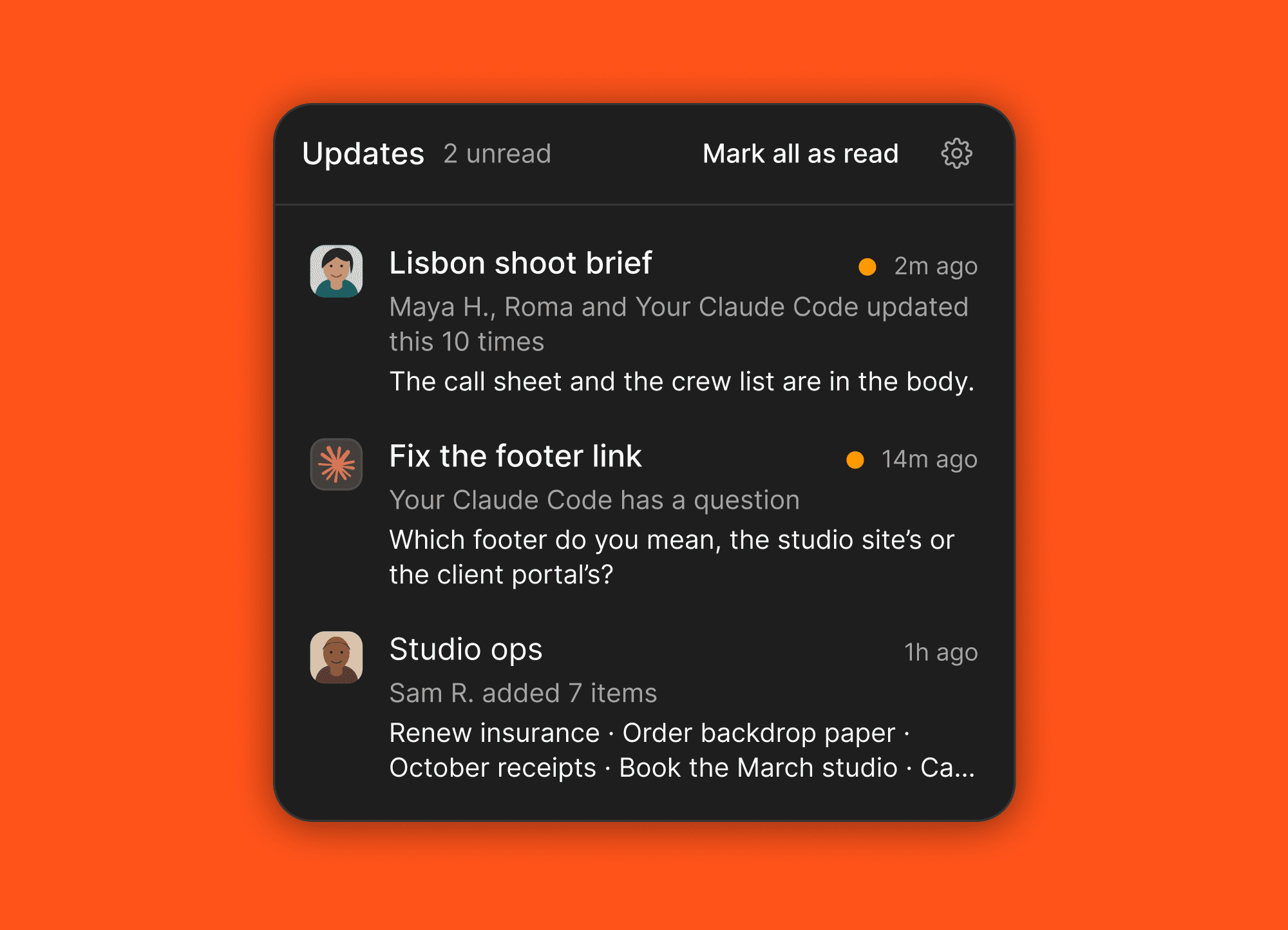
Updates now folds everything on one task into a single row. ChatGPT pulls the numbers for the Lisbon shoot brief, Claude rewrites it twice, and Chief of Staff sends it to the crew. You get one row that names all three and shows the newest words, and it rises to the top as more happens.
Anything meant for you still gets its own row, right away: a mention, a reply, an assignment, or a question from your agent. Everything else follows How often in Settings → Notifications, which starts at once a day. To come back to a row later, right-click it and choose Mark as unread, or swipe it on iPhone.
Choose where each property shows
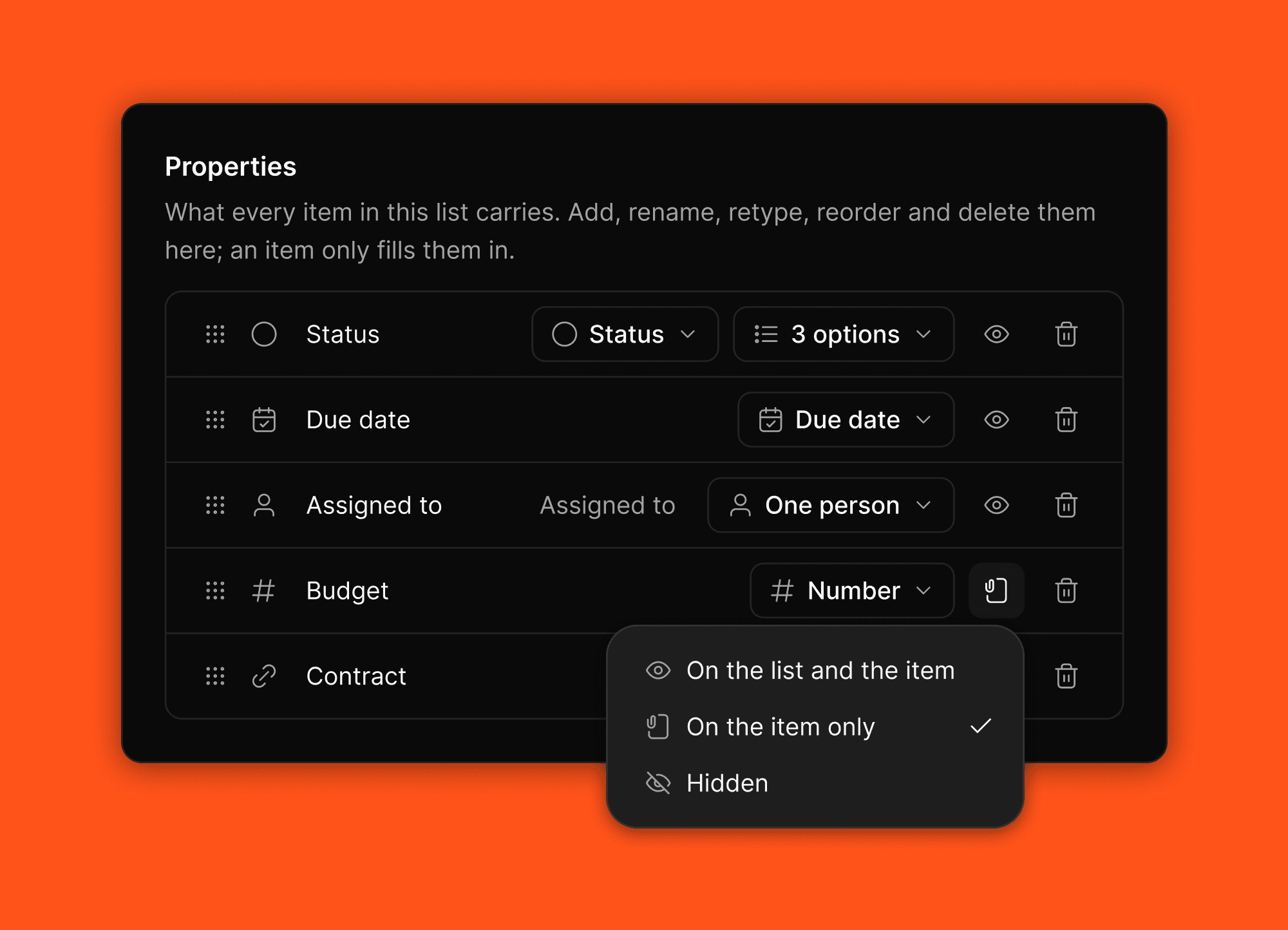
Every property can now show on the list and the item, on the item only, or nowhere. A Budget you set once and rarely check can leave the rows and live in the item’s detail, still there when you need it. Press the eye next to the property in List settings and pick. The title works the same way, and hiding never deletes a value.
Tell the Operator, and your feedback reaches us
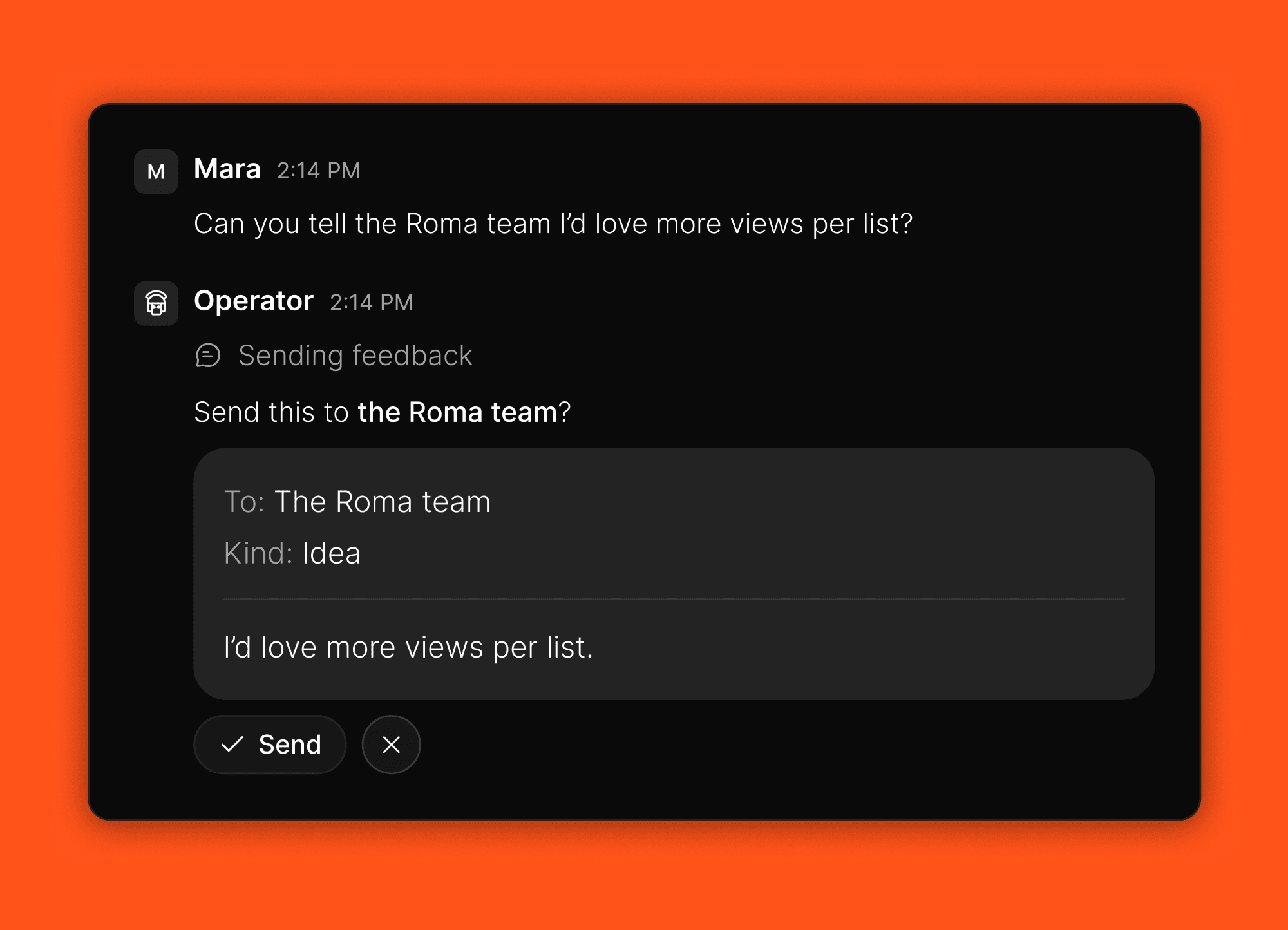
Something broken, or something you wish Roma did? Say it in any chat, like “tell the Roma team I’d love a calendar view.” The Operator writes it up in your words and shows it on a card: who reads it, whether it’s a bug, an idea or a question, and the full text. Nothing goes out until you press Send.
Send feedback is also one form everywhere now: browser, Mac and iPhone, where shaking your phone opens it. Add up to six screenshots, and the Mac app attaches a picture of its window for you.
All updates
Hand any task to an agent: every task has a Delegate field for the Operator or one of your own agents. The agent works in the task's body and chat and hands the task back when it is done. Assigned to is for people, Delegate is for agents.
Every new task has someone: the Operator by default, or the agent you choose for a list in List settings or for your account under Settings → General → Tasks. The account's choice applies to new lists, and a list you already have keeps its own.
Settings → Agents is one page: a tile per agent, a page for each with Details and Status, and one mark that shows how far its setup is, from a ring to a green check.
Claude Code and Codex take tasks on your Mac through Roma Bridge, in the folder you chose. They show the computer they run on and wear a laptop in the Delegate picker.
Connect more than one Grok Bot, each its own agent with its own name. Another Grok Bot under Settings → Agents gives you the message for the next one.
Agents take a turn by one rule, wherever you are: when a task is handed to them, when you mention them, or when you reply to them.
An agent you mention or hand a task to appears in the chat at once with its own mark and stays until it replies, on the iPhone too.
A new task's chat shows its delegate working the moment the task exists, however you created it.
In a task of your own, a plain comment reaches whoever is doing the work: the agent you were just talking to, or else the task's delegate. Tell the Operator "try again" and it hands that to the delegate.
The Operator answers the first message in an item's or a list's chat, and your next lines while its message is the newest one that is not yours, with no @ needed.
On the iPhone, @ and an agent's name in a chat now wakes the agent.
Ask the Operator which agents you have, whether one is connected, or to hand a task to one.
Updates names whose agent posted, such as "Your Claude Code posted on this", and an agent's row wears the agent's mark.
An agent's message in a chat reads as a line, never as a heading.
On a shared list, new items wake nobody: Delegate new items to reads No delegate there, and you mention your agent on an item to bring it in.
In your main chat, @ offers your experts again, and an expert is never pushed out of the @ menu by lists or items.
New accounts are welcomed by one card with two doors: Connect your agents and Import your tasks.
Several views per list: add List, Board or Table views, each with its own sort, filter, shown properties and row size, and switch between them with one press. Rename, duplicate or delete a view, or copy a link to it.
On the Tasks page the list a task is on is a property: filter a view by List or group a board by List. A task typed in a view filtered to one list lands on that list.
The Tasks page shows tasks from every list that keeps a Status, with or without a Due date. Include these lists in your Tasks page, in its List settings, takes a list off the page, on the Mac and the iPhone alike.
Show tasks › People has a third answer, My tasks, for only the tasks assigned to you, and the People filter lists each person once.
On a shared list, on the Mac and in the browser, a change you make to a view is yours until you press Save for everyone. The owner can keep that button to themselves in List settings.
Every property has three places it can show: on the list and the item, on the item only, or hidden. The title too.
A moved item takes the ID of the list it lands on. The Operator and your agents still find it by the ID it had.
Every item shows its ID and Copy task ID, items shared with you and items moved in from another list included.
⌘K answers in sections that never mix, the best match first in each, and opens with the top row lit.
Type a task's ID, its number alone or an ID with a typo into ⌘K, and the task comes up first, whatever its age.
A task in ⌘K, in search and in the @ picker shows its status in front of its title, and each row ends on one detail: its list, or its ID once you pick ID under Search results show in Settings.
With tasks selected, ⌘K leads with what you can do with them, and Clear removes a property's value from all of them at once.
On the iPhone, search shows the best match first and is a page of its own: go back from a result and your search is as you left it.
Updates folds everything on one task into one row that grows while it is unread and rises to the top.
Follow edits is one row in an item's and a list's menu, covering edits and chat together.
How often paces Updates as well as your phone, and starts at Once a day. A mention, a reply, an assignment and your agent's question never wait.
Right-click an update to open it in a new tab or mark it as unread. On the iPhone, Updates is a plain list where a swipe or a hold marks a row read or unread.
On the iPhone, a new account's bar reads Tasks, Lists, Updates, Operator, and so does a bar you never arranged.
Tell the Operator what is broken or what you wish for, and it writes your feedback on a card. Nothing is sent until you press Send.
Send feedback is one form in the browser, the Mac app and the iPhone, with up to six screenshots. A shake of the phone opens it, and the Mac app adds a picture of its window.
Back returns to the page you looked at before, whichever tab holds it: ⌘[, the chevrons and the back button on a mouse.
A link in a body can lead into another app. A tap on the iPhone opens that app, and on the Mac Roma asks first.
On the Mac and in the browser, paste the link of one of your own tasks, notes or items into a body and it becomes a mention chip.
The image viewer steps through every picture of the same body or message with ← and →.
A voice take in the browser and the Mac app runs for up to two hours and is transcribed in pieces as you go. The X throws the take away and keeps what you had typed.
A long chat never gets too big to send.
The Operator reads the words of a styled email instead of its page code, and far more of a long one.
Every expert wears an icon: pick one of sixty-four above the name on the expert's page.
The Operator's helmet is an app icon now: Settings → Display → App icon, on the iPhone and the Mac.
Signing in to an MCP server you added yourself comes back to Roma as it should.
On the iPhone, an item's and a list's properties share one settings sheet, the Tasks page's included lists follow what you set on the Mac, and the app icon's badge no longer shows 1 with nothing unread.
From the last edition, now on the Mac and the iPhone: a list's ID at the head of its menu with Copy list ID, and the Operator sharing, inviting, pinning, archiving and bringing things back from the trash when you ask.
From the last edition, now on the iPhone: finding any task by its ID in search, agents' marks in Updates, and Cancel and Save on a new expert's page.
Polish: one type scale and one row style across Settings, tooltips on the list's settings button and the item's ⋯, people's faces as rounded squares everywhere, faces in a header that stand apart in dark mode, the Mac's App icon setting as a dropdown, and account deletion steps that say Deleting.